DaVinci Resolve Nodes Explained: Serial, Parallel, Layer and Outside Nodes
Understand nodes in DaVinci Resolve: serial, parallel, layer and outside nodes explained with practical examples, tables and tips from Studio Hue, Kochi.
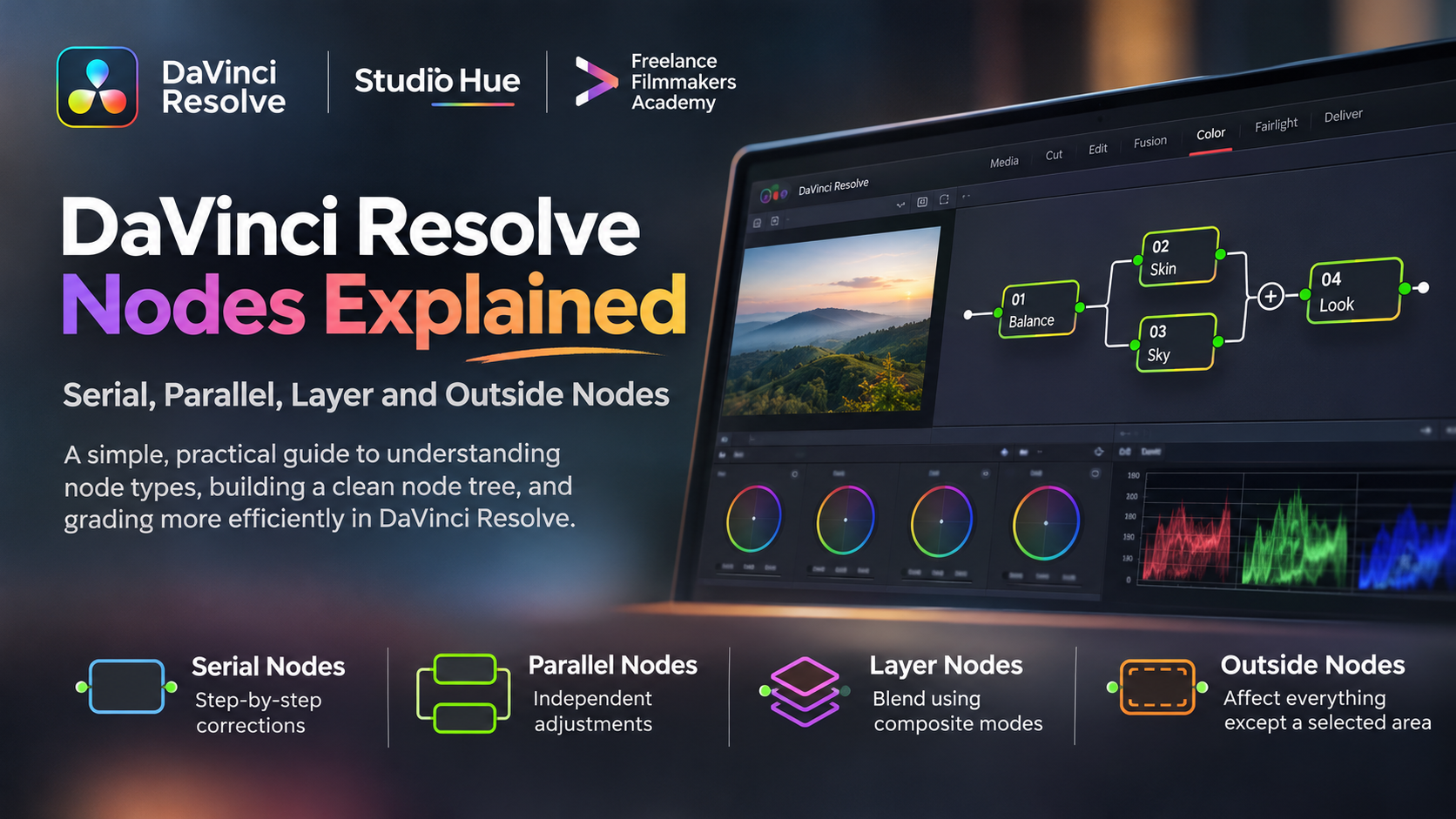
Nodes in DaVinci Resolve are the individual correction steps that make up a grade on the Color page. Serial nodes apply corrections one after another, parallel nodes grade the same source side by side, layer nodes blend corrections using composite modes, and outside nodes affect everything except a selected area. Together they form a node tree.
If you have ever opened a graded project and felt lost in a tangle of boxes, this guide is for you. We grade films, ads and music videos at Studio Hue, and we teach the same node logic to students at Freelance Filmmakers Academy. Below is the way we explain nodes in the suite, with practical examples you can try in the free version of DaVinci Resolve.
Why do nodes matter for colour grading in DaVinci Resolve?
DaVinci Resolve is built by Blackmagic Design and is a standard finishing tool for colourists. Unlike layer-based apps, Resolve grades with a node graph: each correction lives in its own box, and the lines between boxes show exactly how the image flows.
That structure matters more every year. According to the Ormax OTT Audience Report 2026, India’s online video audience reached 664.9 million people, about 45% of the population, and the connected-TV audience grew 60% in one year to 206.9 million. Larger screens and more viewers mean clients notice inconsistent skin tones, crushed shadows and mismatched shots.
A clean node tree lets you fix those problems quickly, hand a project to another colourist, and revise a grade without starting over.
How does the node graph work?
Every clip on the Color page has its own node graph. The image enters at the green input on the left, passes through your nodes, and leaves at the blue output on the right. Each node holds its own colour wheels, curves, qualifiers, power windows and effects.
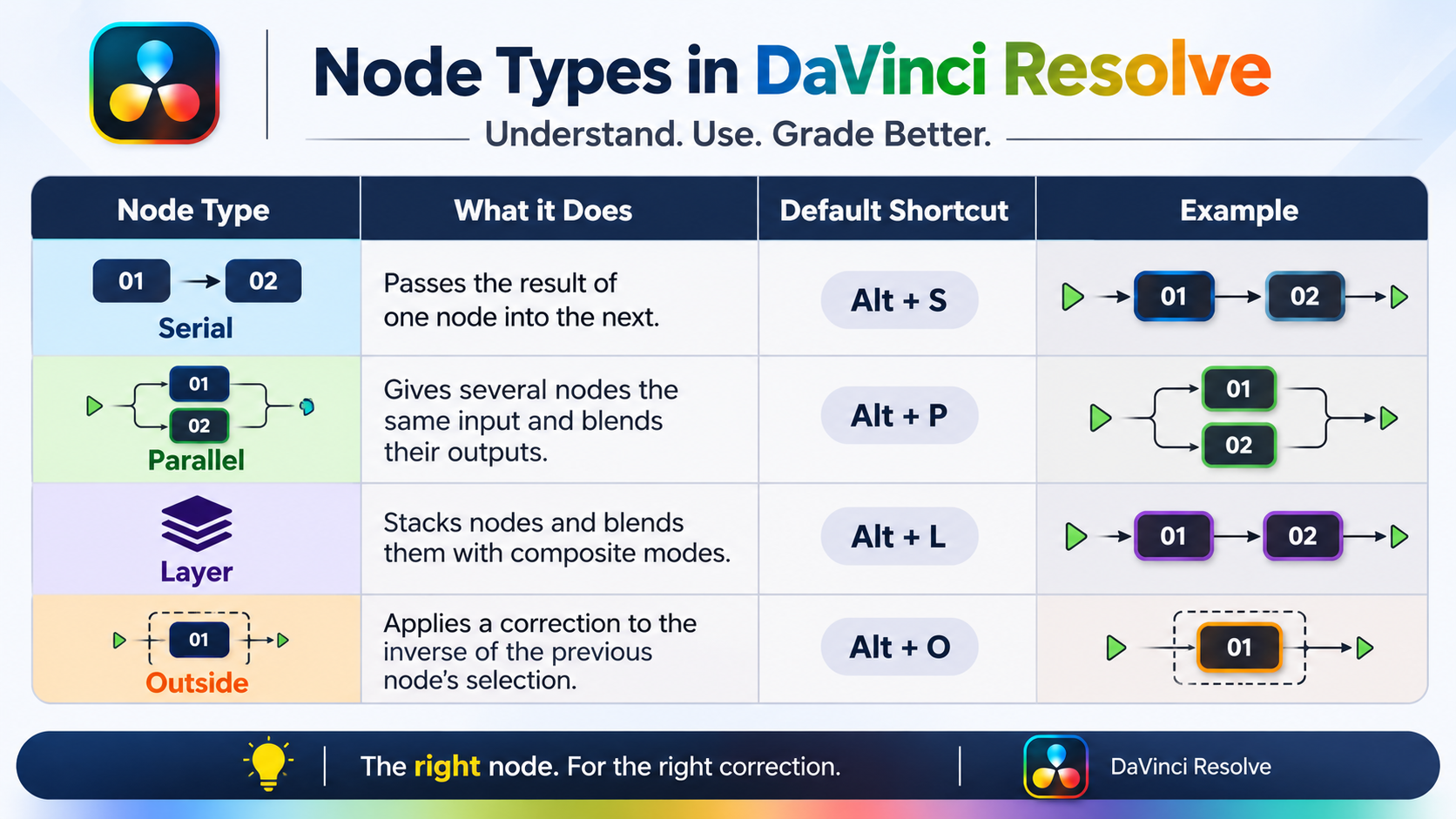
How you connect nodes decides how corrections interact. The four connection types below cover almost every grade you will build.
What are serial nodes in DaVinci Resolve?
Serial nodes are the default. The output of each node becomes the input of the next, so every correction builds on the one before it. Think of a serial chain as a recipe read from left to right.
Example: a houseboat shot in Alappuzha, shot in log
Node 1, base correction: set exposure and white balance until the scopes sit where you expect.
Node 2, contrast: shape the tonal range with curves so the water and sky separate.
Node 3, skin: qualify the presenter’s skin and balance it to a natural tone.
Node 4, look: add a warm highlight and cool shadow tint for the final style.
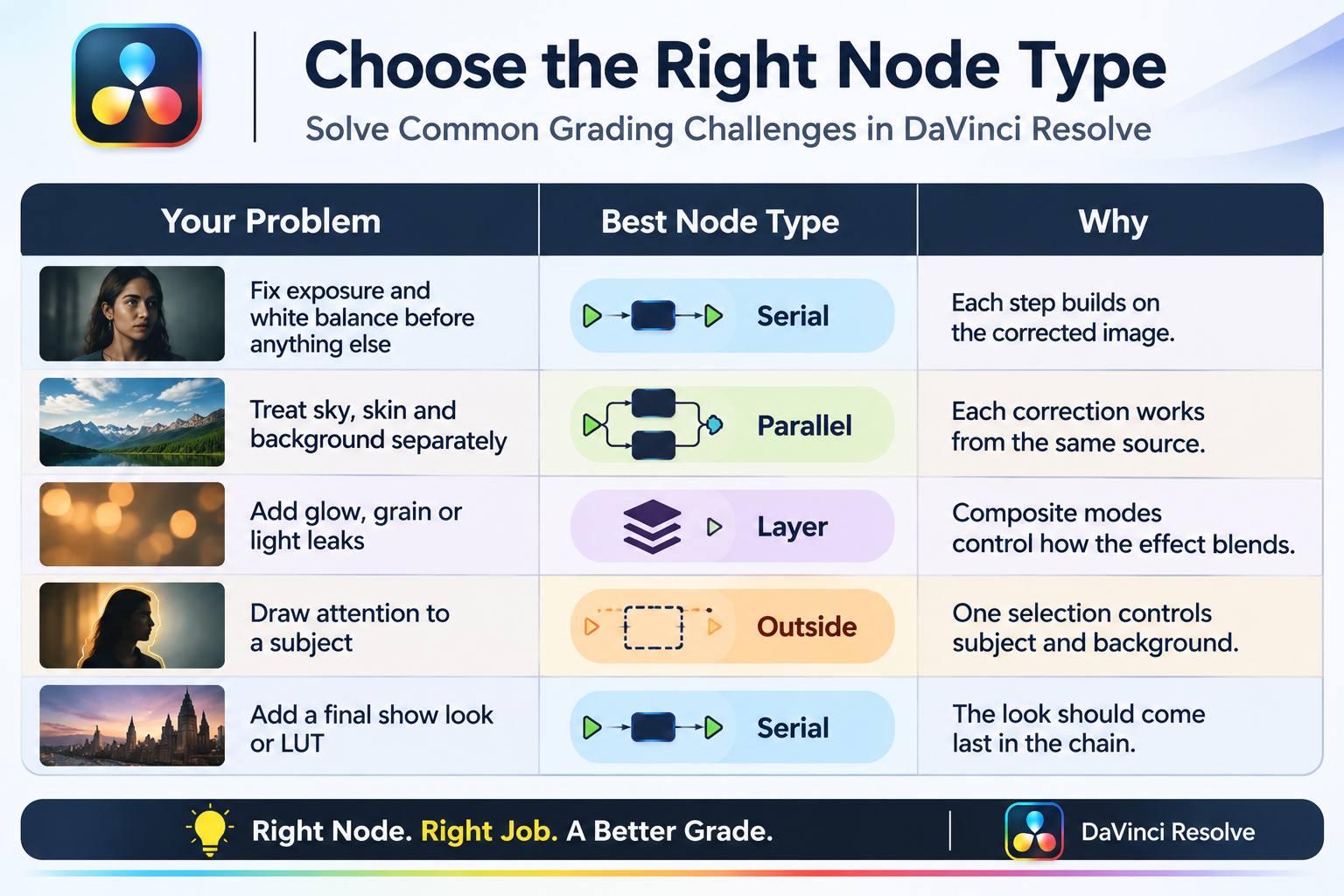
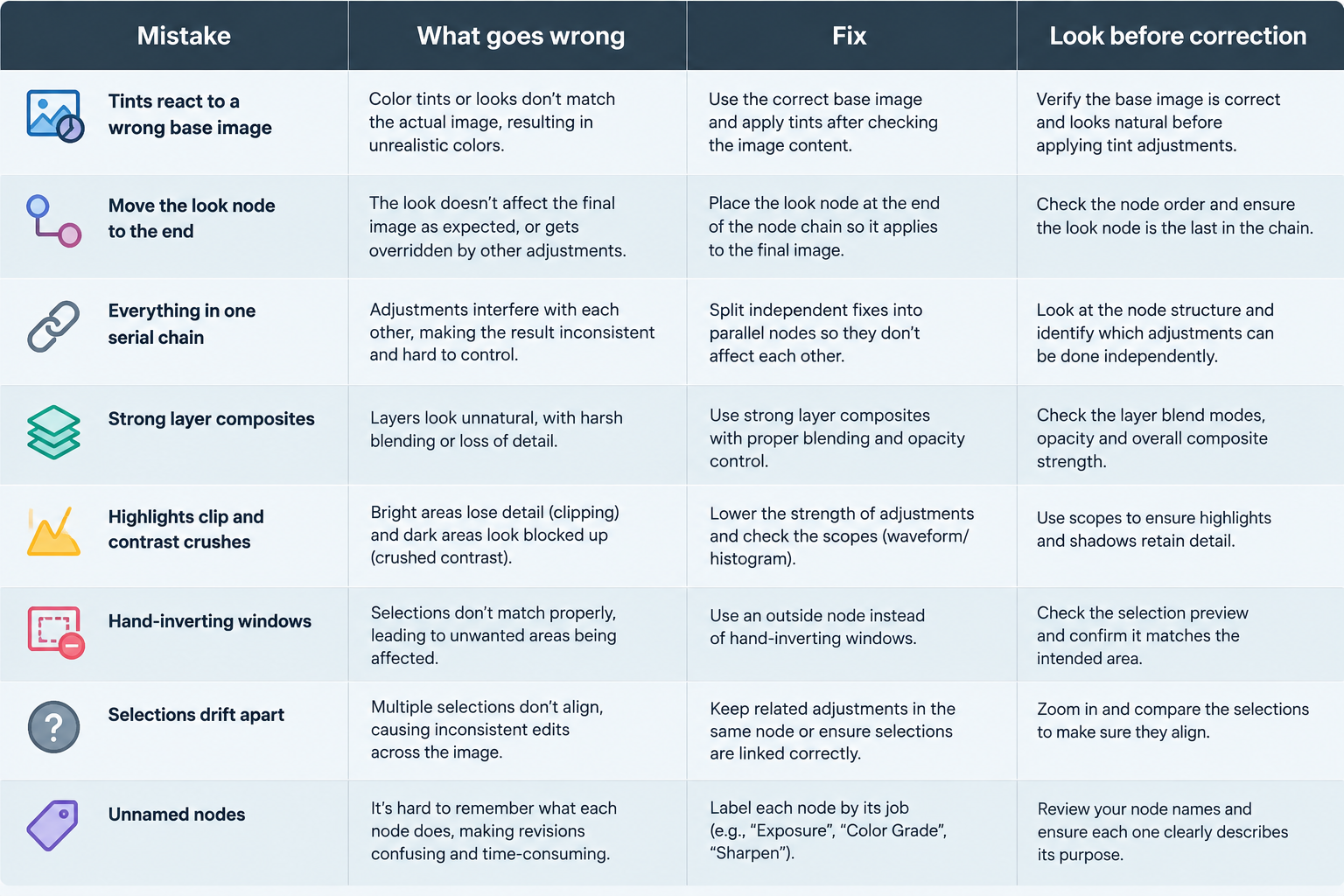
Order is everything. A tint placed before white balance reacts to the wrong image, and every node after it has to compensate. Fix first, stylise last.
What are parallel nodes and when should you use them?
Parallel nodes sit side by side and all receive the same input image. A Parallel Mixer combines their results. Because they do not feed each other, one node can never disturb another node’s key.
Example: a sunset couple portrait at Fort Kochi beach
Parallel node A: qualify the sky and enrich the orange and blue.
Parallel node B: qualify the sea and calm its saturation.
Parallel node C: qualify skin tones and keep them natural.
Use parallel nodes when different parts of one frame need independent treatment. If two nodes overlap in the same area, their effects stack in the mixer, so check the waveform after blending.
What are layer nodes and how do composite modes work?
Layer nodes stack on top of each other in a Layer Mixer. Each layer has its own composite mode, such as Screen or Soft Light, so it blends with the layers beneath it the way layers blend in a compositing app.
Example: a halation-style highlight glow
Add a layer node and qualify only the brightest highlights.
Push them slightly towards warm red or orange.
Soften the result with a small blur.
Set the composite mode to Screen and keep the strength low.
The highlights bloom gently without lifting the shadows or flattening your contrast. Layer nodes also suit grain, light leaks and any creative effect you want to adjust separately from the base grade.
What are outside nodes and why are they useful?
An outside node uses the inverted key of the node before it. Whatever you selected in the previous node stays protected, and the outside node corrects everything else.
Example: a watch product shot for an ad
In Node 2, add a power window around the watch and lift its exposure slightly.
Add an outside node after it.
Cool and darken the background so the watch becomes the brightest, warmest object in the frame.
You avoid drawing and inverting a second window, and moving the first window automatically updates the background correction.
Which node type should I use? A quick decision table
A step-by-step node workflow you can follow
Correct first. Build a serial base grade for exposure, white balance and contrast.
Balance skin. Add a serial or parallel node for consistent skin tones.
Isolate problem areas. Use parallel nodes for sky, foliage and backgrounds.
Control focus. Use a window plus an outside node to guide the eye.
Add atmosphere. Use layer nodes for glow, grain and overlays.
Finish with the look. Place the creative look or LUT at the end of the chain.
Label every node. Clear names make revisions and handovers fast.
Common mistakes with nodes in DaVinci Resolve
Learn nodes hands-on at Freelance Filmmakers Academy
Reading about nodes helps, but grading real cinema-camera footage with feedback from a working colourist is what makes the skill stick. Freelance Filmmakers Academy in Kochi teaches colour grading through real industry workflows, led by colourist Ebin Philip, founder of Studio Hue.
About Studio Hue
Studio Hue is a colour grading and post-production house in Padivattom, Edappally, Kochi, Kerala, working from a professional DI suite on films, ads and music videos. The same grading pipeline we use for clients is the one students train on at the academy. Explore our work and services at studiohue.in.
Frequently Asked Questions
What is a node in DaVinci Resolve?
A node is a single correction step on the Color page. Each node has its own colour wheels, curves, qualifiers, windows and effects. Nodes connect from the green input to the blue output, and the way you connect them, in serial, parallel or layers, decides how the corrections combine into the final grade.
What is the difference between serial and parallel nodes?
Serial nodes pass the image from one node to the next, so each correction builds on the last and order matters. Parallel nodes all receive the same input and are blended by a Parallel Mixer, so each correction works independently. Use serial for step-by-step workflows and parallel for separate fixes on one frame.
How do layer nodes differ from parallel nodes?
Layer nodes blend with composite modes such as Screen or Soft Light, which makes them ideal for glow, grain and overlays. Parallel nodes simply combine independent corrections side by side. Choose layer nodes when you need blending control and parallel nodes when you need isolation between corrections.
What does an outside node do?
An outside node applies a correction to everything outside the selection of the node before it. If you isolate a subject with a power window, the outside node lets you darken, cool or desaturate the whole background in one step, without drawing and inverting a second window.
Can I learn node-based colour grading in the free version of DaVinci Resolve?
Yes. The free version includes the Color page and all four node types covered here, and a decent laptop or PC is enough to begin. Some advanced tools are limited to the paid Studio version. Beginners can start with the free version and follow the academy’s online masterclass.
Conclusion: build your node tree with intent
Understanding nodes in DaVinci Resolve turns grading from guesswork into a repeatable process. Serial nodes build the foundation, parallel nodes isolate fixes, layer nodes add blended effects, and outside nodes control the area around your subject.
Ready to practise on real footage with a working colourist guiding you? Explore the programmes at Freelance Filmmakers Academy and see professional grades come together at Studio Hue.