DaVinci Resolve for Beginners: A Practical Path for Grading Your First Project
Most beginners open DaVinci Resolve's Color page and grade by feel — which is exactly why shot 10 never matches shot 1. This guide breaks down the simple, repeatable sequence professional colorists actually follow, from balancing exposure to matching shots, before you ever touch a creative look.
Opening your first project in DaVinci Resolve's Color page can feel like stepping into a cockpit. Scopes, nodes, wheels, curves and no idea which one to touch first. That confusion is exactly why most beginners either freeze up or grade randomly until something "looks right."
Grading your first project well doesn't require mastering every tool in DaVinci Resolve. It requires a small, repeatable sequence: balance your exposure, correct your color, shape your look, then check your work against scopes instead of your eyes alone. Learning that sequence rather than memorizing tools is the fastest way from "beginner" to "capable," and it's the same foundation any structured DaVinci Color Grading Course will build on.
Why First-Time Grading Goes Wrong
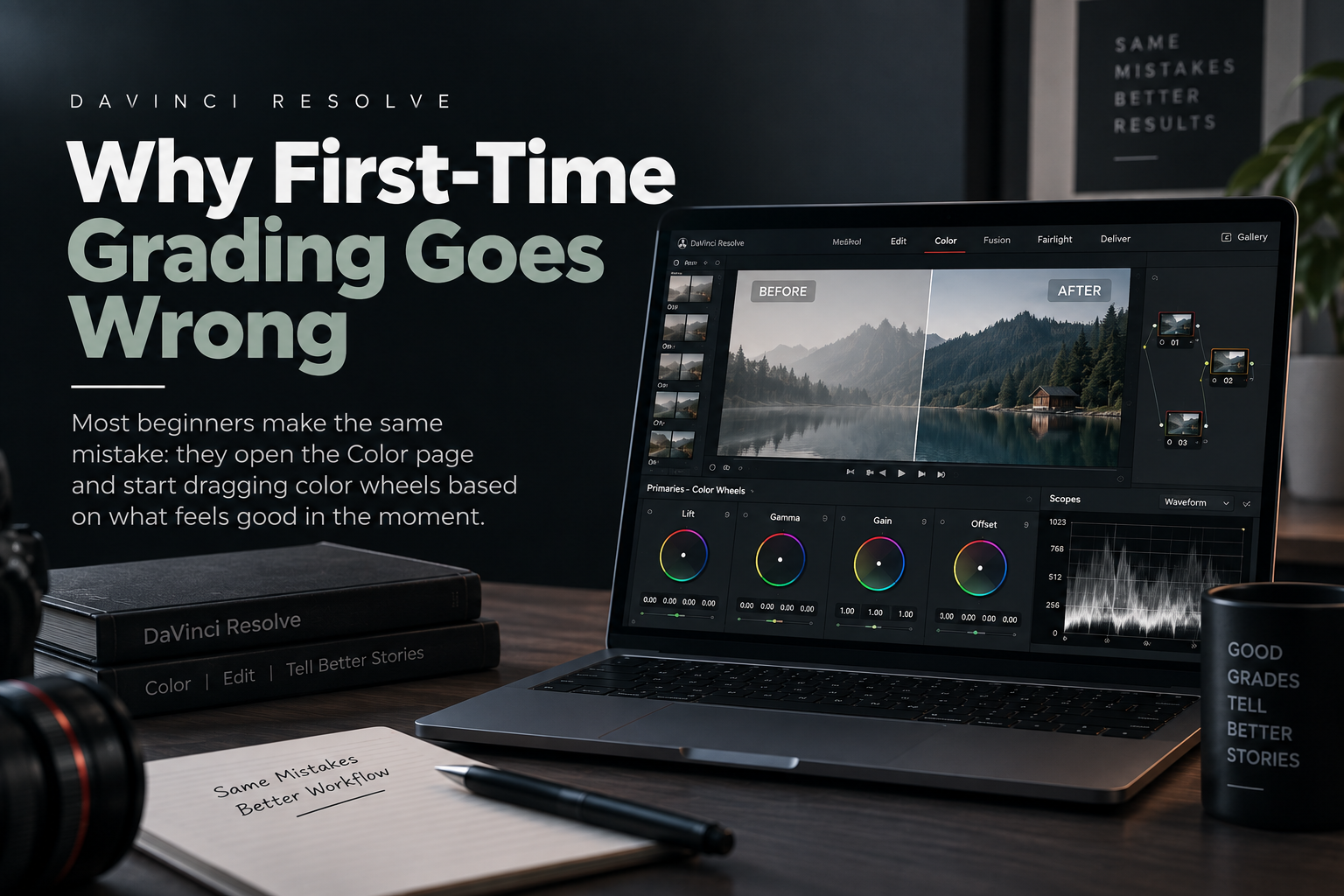
Most beginners make the same mistake: they open the Color page and start dragging color wheels based on what feels good in the moment. Without a process, small adjustments compound into inconsistent shots, and by clip ten, nothing matches clip one.
Three things trip up almost every first-timer:
Grading by eye on an uncalibrated monitor what looks great on a laptop can look wrong everywhere else.
Skipping shot matching grading clips in isolation instead of relative to each other.
Confusing correction with creativity trying to add a "look" before the base exposure and white balance are even fixed.
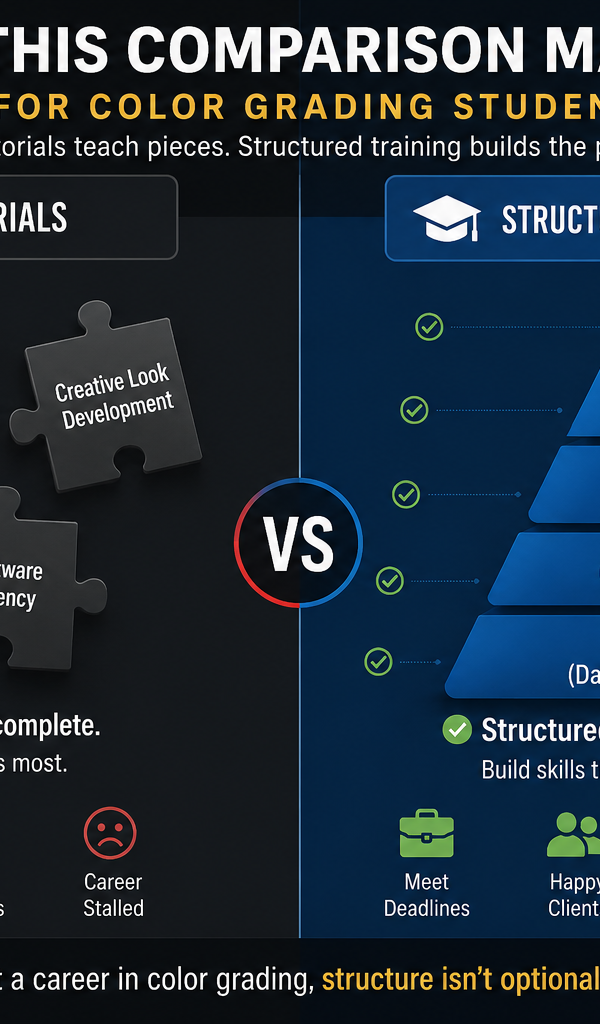
A DaVinci Color Grading Course exists precisely to fix this order of operations early, before bad habits set in. But you can build the same discipline yourself, on your very first project, by following a fixed sequence every time.
Step 1: Organize Before You Grade
Before touching a single color wheel, group your clips. In the Color page, select clips shot in similar lighting and use Create Still or Group Clips so adjustments apply consistently across a scene. This single habit prevents the "why does shot 4 look different from shot 3" problem that derails most first attempts.
Step 2: Balance Exposure and White Balance First
Every grade cinematic, natural, or stylized starts from a technically balanced image. Use the Parade scope to check that your shadows, mid-tones, and highlights sit at reasonable levels, and use the white balance eyedropper on a neutral gray or white object in frame to correct color casts.
Skip your "look" entirely at this stage. This step alone resolves most of what makes footage look amateur.
Step 3: Use Primary Wheels for Correction, Not Style
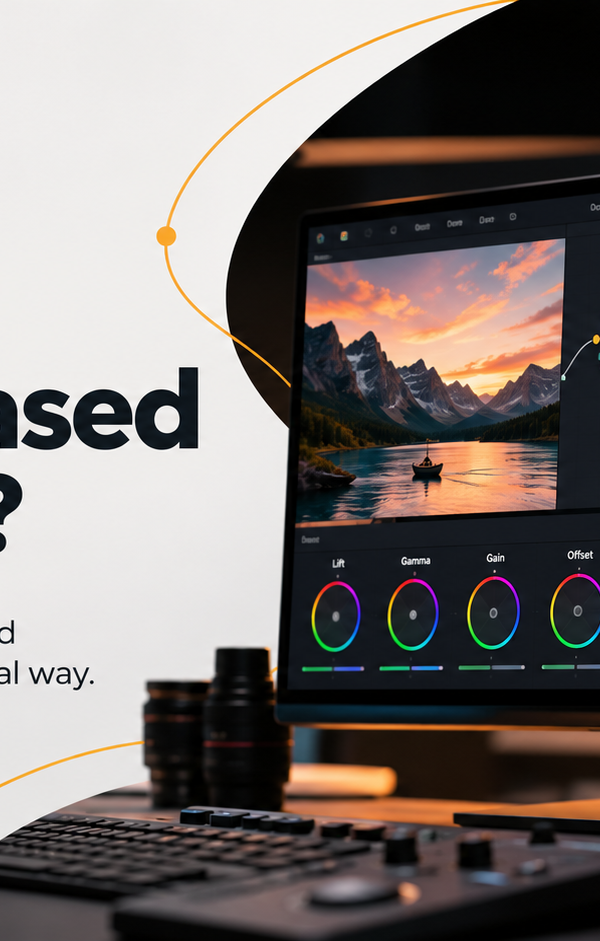
DaVinci Resolve's Primary color wheels (Lift, Gamma, Gain) are for correction, not personality. Push Lift to set your black point, Gamma to shape your mid-tones, and Gain to control your highlights all while watching the scopes, not just the preview monitor.
This is the stage most DaVinci Color Grading Course curricula spend the most time on, because it's the difference between footage that's merely watchable and footage that's clean.
Step 4: Match Your Shots
With correction done, switch between clips in the same scene and compare them side-by-side using the Gallery and stills. Small tweaks here a touch more warmth on one shot, a slight lift on another make a sequence feel like one continuous scene instead of a patchwork of separately edited clips.
Step 5: Add a Creative Look - Only Now
Once every shot is technically balanced and matched, you've earned the right to add style. Use Color Warper, curves, or a LUT as a starting point (never a final answer), and apply it as an adjustment layer so it's consistent and easy to remove or tweak later.
This is also where a structured DaVinci Color Grading Course adds the most long-term value not by teaching you which sliders exist, but by teaching you how to make stylistic decisions that serve the story instead of just looking "cool" in isolation.
Step 6: Check Your Work, Don't Just Trust Your Eyes
Before calling the grade final, check it against the Waveform and Vector-scope, and view it on at least one other screen. Monitors lie especially laptop screens with aggressive contrast curves. A grade that looks perfect on your editing display can look crushed or oversaturated everywhere else.
When to Move From Self-Taught to a DaVinci Color Grading Course
Self-teaching gets you through your first few projects. But most beginners hit a ceiling around the same point: they can follow steps, but they don't yet understand why a shot needs warming instead of brightening, or when to grade for continuity versus mood. According to a 2023 Blackmagic Design user survey, a majority of Resolve users report self-teaching as their primary learning method which also helps explain why inconsistent, self-taught grading habits are so common industry-wide.
That gap between "I can operate the tools" and "I understand color as a storytelling language" is exactly what a dedicated DaVinci Color Grading Course is built to close.
Frequently Asked Questions
Do I need to buy DaVinci Resolve Studio to learn color grading?
No. The free version of DaVinci Resolve includes the full Color page, primary wheels, curves, scopes, and node-based grading tools. Studio adds features like noise reduction, HDR grading, and multi-GPU support, which matter more once you're taking on paid client work than during your first learning project.
How long does it take to grade a first project properly?
For a short project (5–10 minutes of footage), expect 2–4 hours if you follow a structured sequence organizing, balancing, correcting, matching, then styling. Rushing this process is the main reason first grades look inconsistent.
What's the difference between color correction and color grading?
Color correction fixes technical problems exposure, white balance, skin tones. Color grading is the creative step that comes after, shaping mood and style once the image is already balanced. Beginners often skip straight to grading, which is why results look off.
Is a DaVinci Color Grading Course worth it for someone who's self-taught?
Yes, particularly once you can operate the tools but still make inconsistent creative decisions. A course accelerates the jump from "technically correct" to "intentional," and shortcuts months of trial and error on real client work.